Use these steps to create a Shapr3D account, verify your email address, and request the free Shapr3D Educational license.
Before you start
- Use the email address provided by your school or institution. Personal email addresses such as Gmail, iCloud, Outlook, or Hotmail may be declined.
- Make sure you can open your school email inbox, because Shapr3D will send a verification email.
- Have proof of current student or staff status ready in case Shapr3D asks for supporting documents.
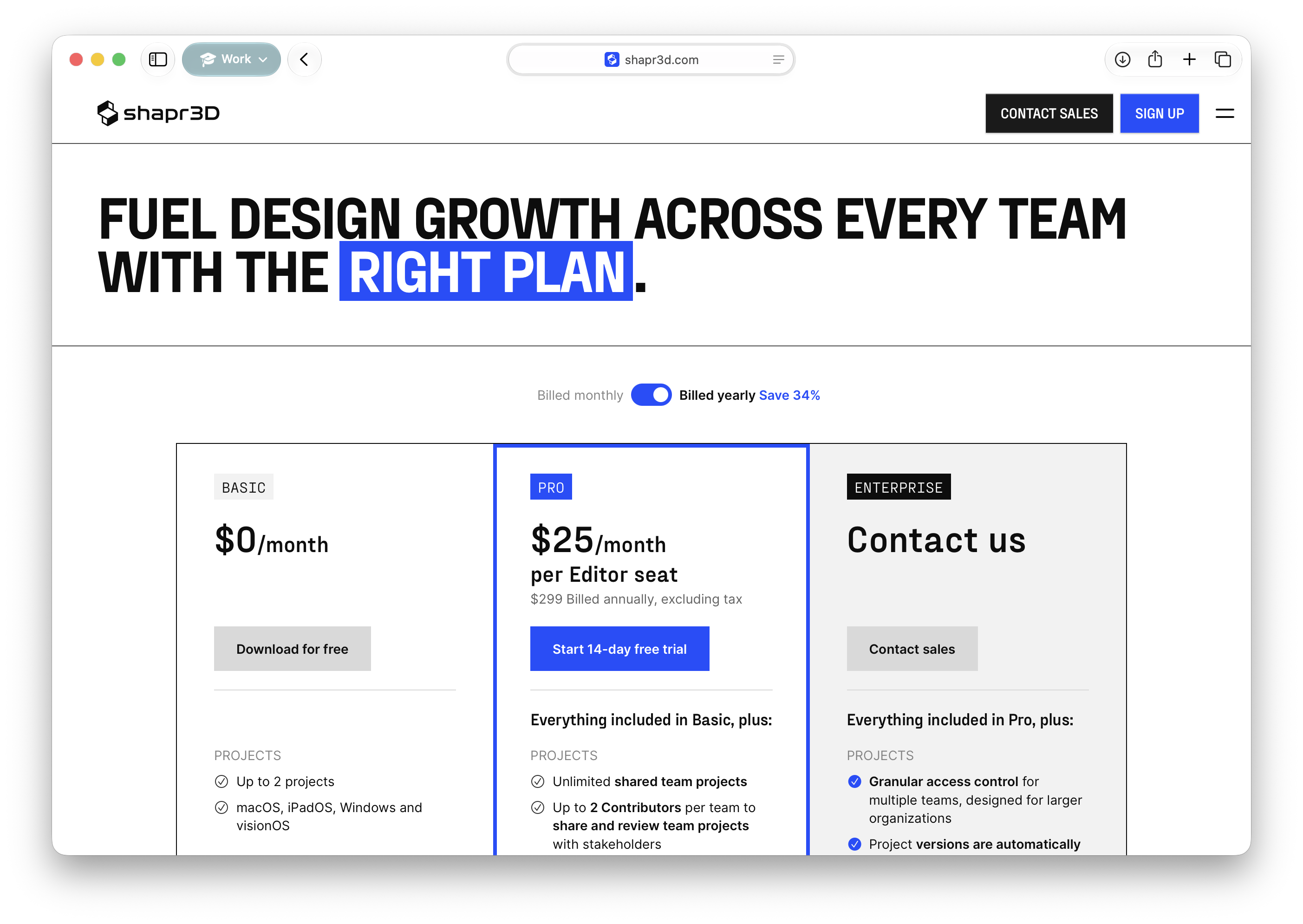
Step 1: Go to Shapr3D pricing
- Open https://www.shapr3d.com/pricing.
- Scroll below the subscription cards.
- Select Shapr3D is free for Students and Educators.
On the pricing page, choose the student and educator link under the plan comparison.
Step 2: Create your Shapr3D account
- When the signup page opens, enter your school email address.
- Create a password, re-enter the password, and enter your name.
- Tick the box to agree to the Shapr3D Terms of Use and Privacy Policy.
- Select Sign Up.
The signup form asks for your email, password, name, and agreement to the terms.
Step 3: Verify your email address
- Open your school email inbox.
- Find the verification email from Shapr3D.
- Select Verify email address in the email.
- After verification, go to https://app.shapr3d.com and log in with the same school email address.
If the verification email does not arrive: check Junk, Spam, Clutter, and any email quarantine folder. Then log in at app.shapr3d.com, select your email address in the top-right account menu, and choose Resend verification email if it appears.
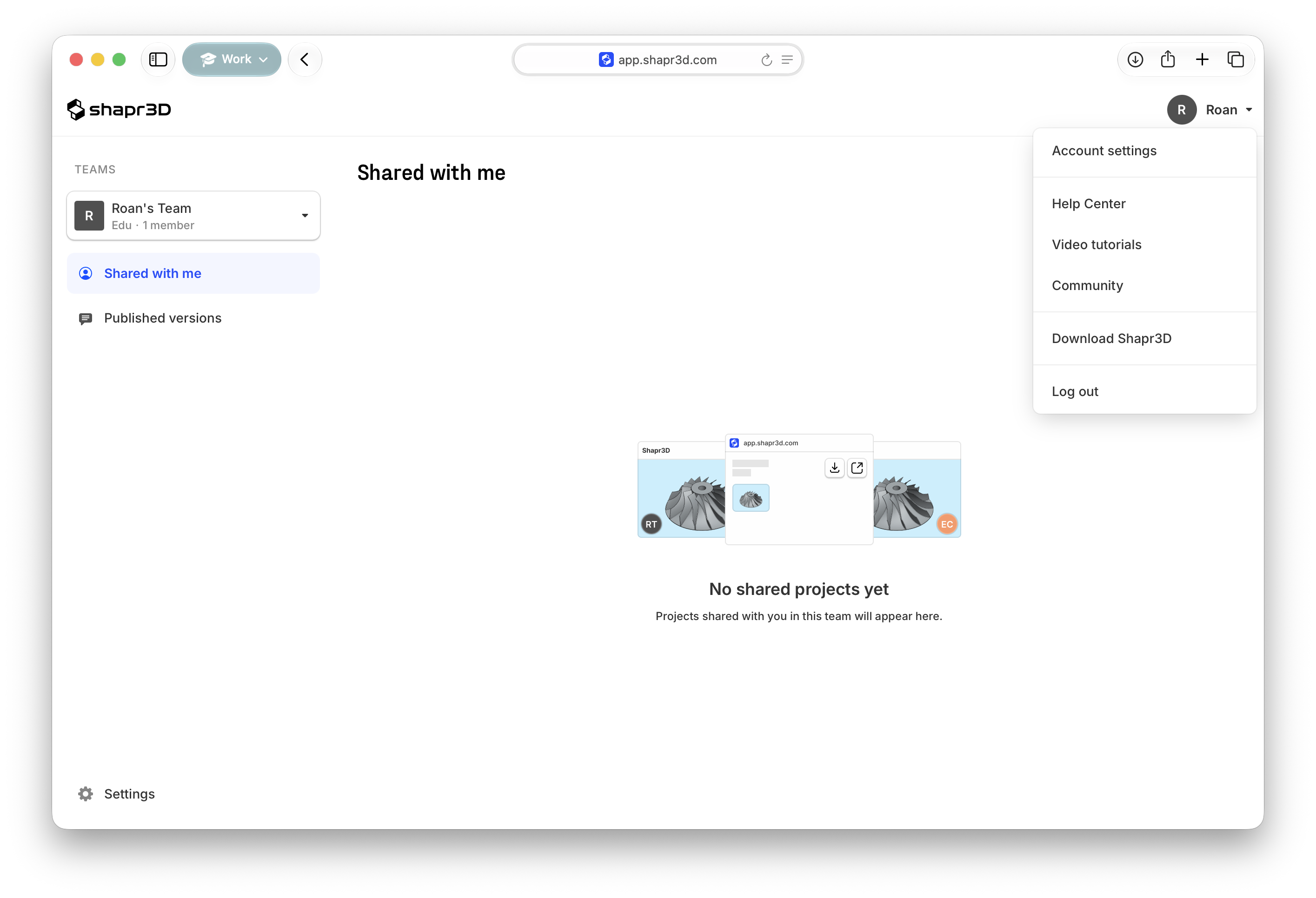
The account portal is at app.shapr3d.com. Log in here after verifying your email address.
Step 4: Request the Educational license
- Open https://app.shapr3d.com/edu.
- Log in if Shapr3D asks you to sign in again.
- Complete every field on the Request Educational license form.
- Attach supporting documents if requested. Shapr3D may ask for a current student or staff ID with an expiry date, or another document proving you are an active member of your educational institution.
- Select Send Request.
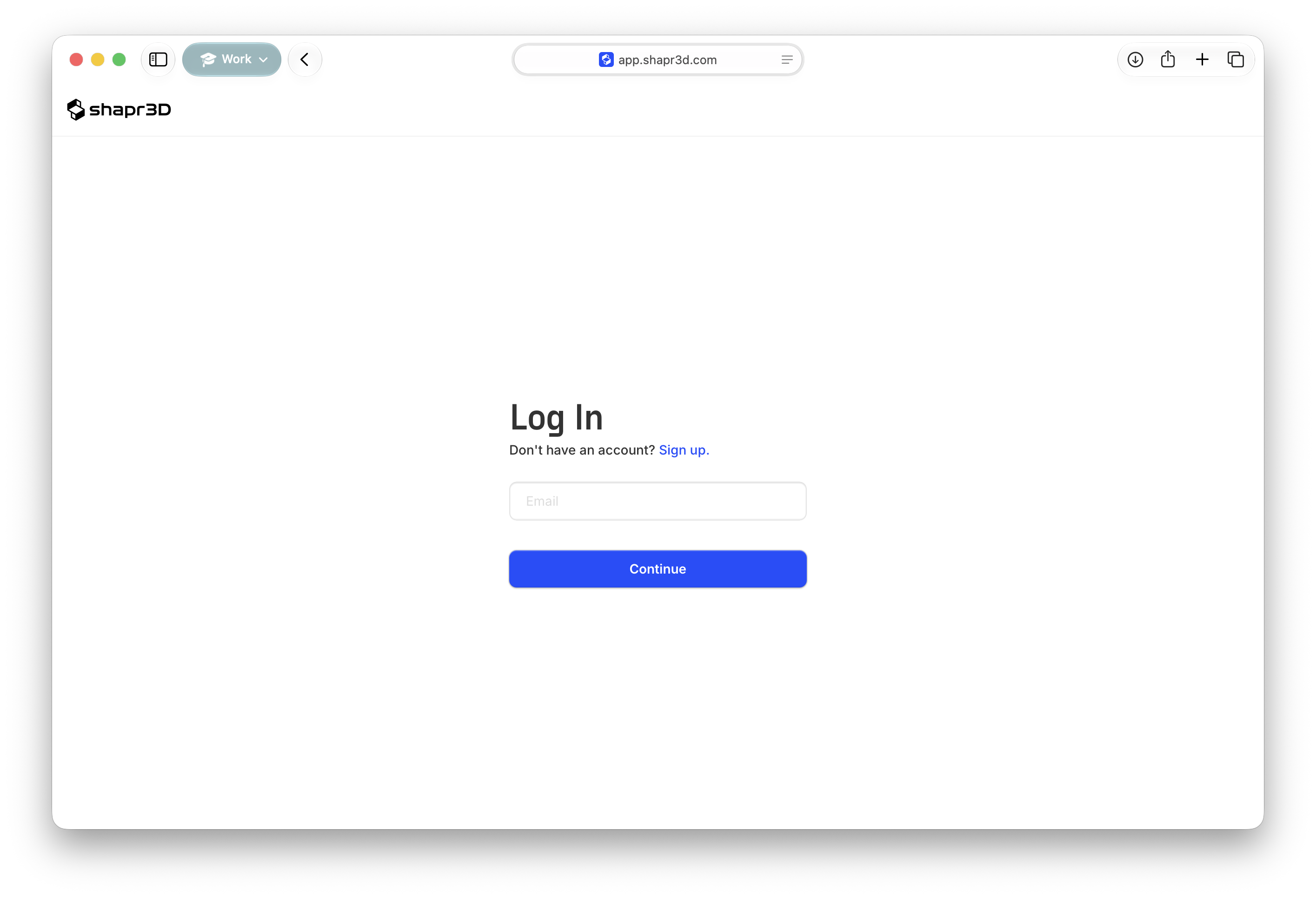
If you are not signed in, the EDU license page will ask you to log in first. After login, it will take you back to the EDU request.
What happens next
- Shapr3D will review the request and email you the result.
- Shapr3D says review usually takes 5 seconds
- If your institution is already approved by Shapr3D, approval may happen automatically within 1 business day.
- Once approved, sign in to Shapr3D with the same verified school account to use the Educational license.
Common issues
| Problem | What to do |
|---|---|
| I signed up with a personal email address. | Use your school-provided email address for the education request. Shapr3D may decline requests made with personal email addresses. |
| I cannot find the verification email. | Check Junk, Spam, folders, and quarantine. Then log in at app.shapr3d.com and use Resend verification email from the account menu if available. |
| The EDU page keeps asking me to log in. | Log in with the same school email address you used to create and verify the account. If you have multiple Shapr3D accounts, sign out and sign back in with the school account. |
| Shapr3D asks for documents. | Upload current proof of student or staff status. Make sure any ID has a visible expiry date if Shapr3D requests one. |
| The Educational license option is not available. | Shapr3D says EDU availability may vary by country. Check the pricing page again or contact Shapr3D Support from their Help Center. |
Was this article helpful?
That’s Great!
Thank you for your feedback
Sorry! We couldn't be helpful
Thank you for your feedback
Feedback sent
We appreciate your effort and will try to fix the article