At the College, students are unable to access YouTube. Here's how you can download a YouTube video for your lessons.
Downloading from YouTube
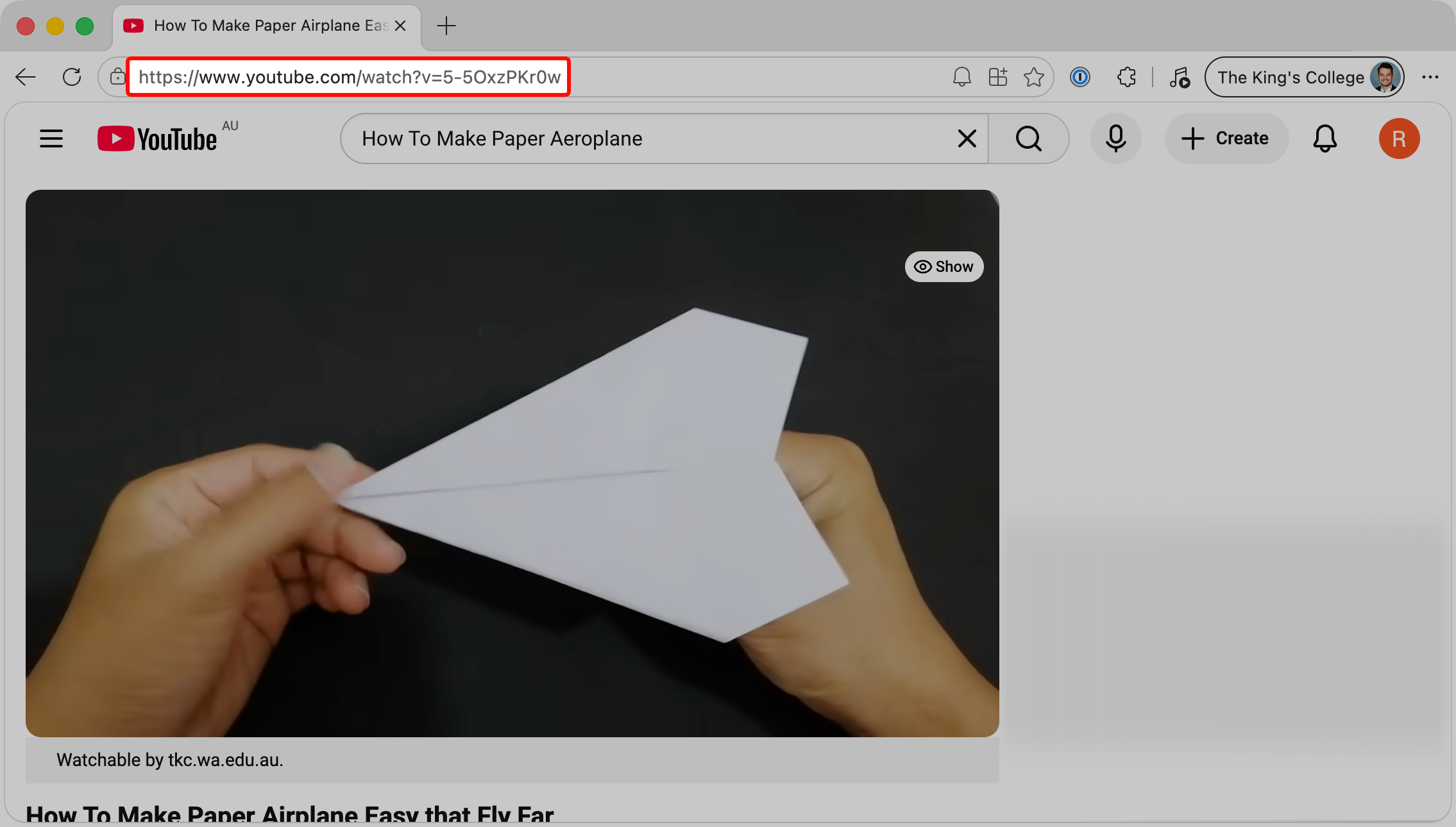
1. Copy the URL of the YouTube video you wish to download.
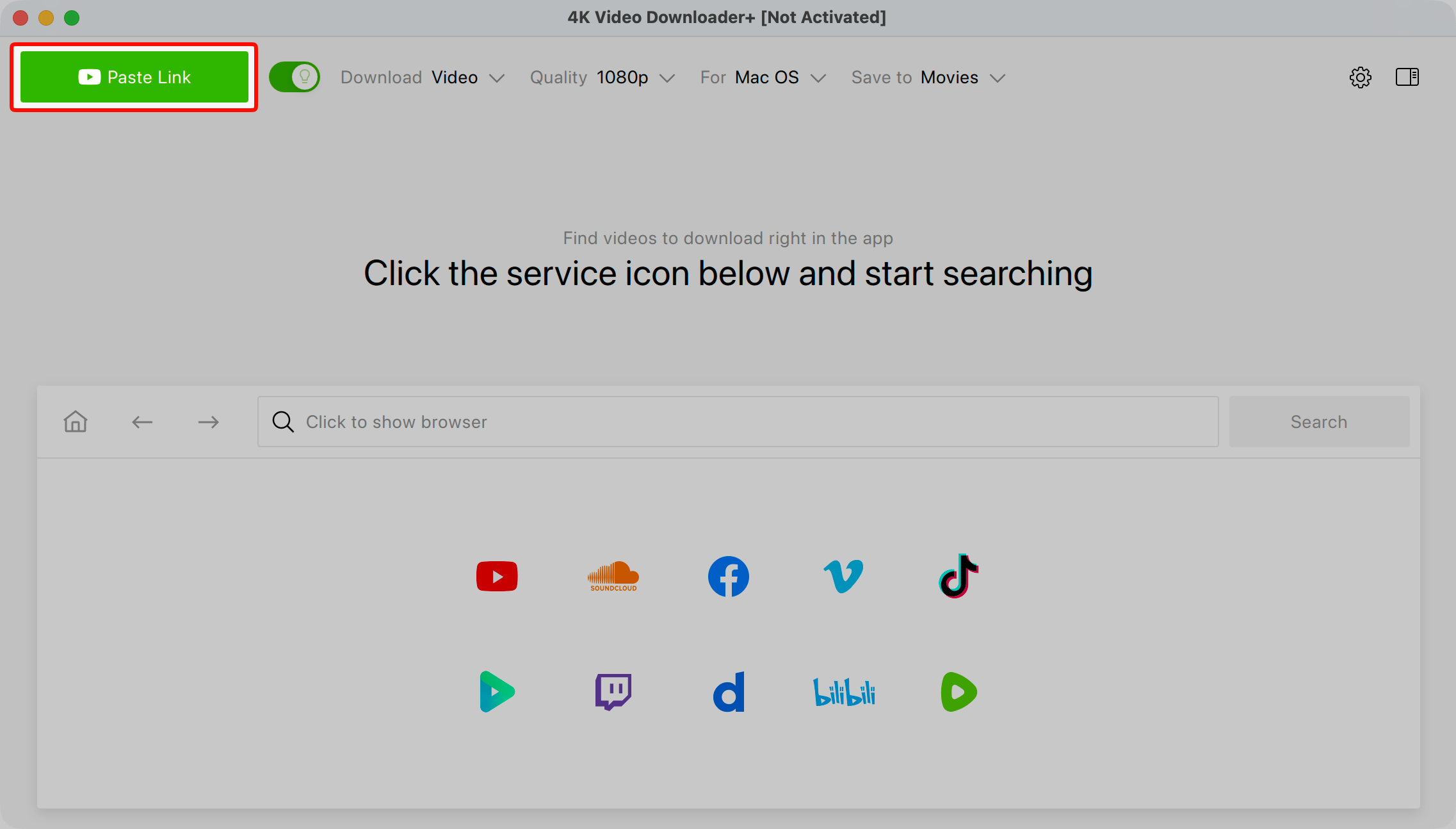
2. Open the 4K Video Downloader+ application, then click "Paste Link". If you don't have this application, you can download it from Self Service+.
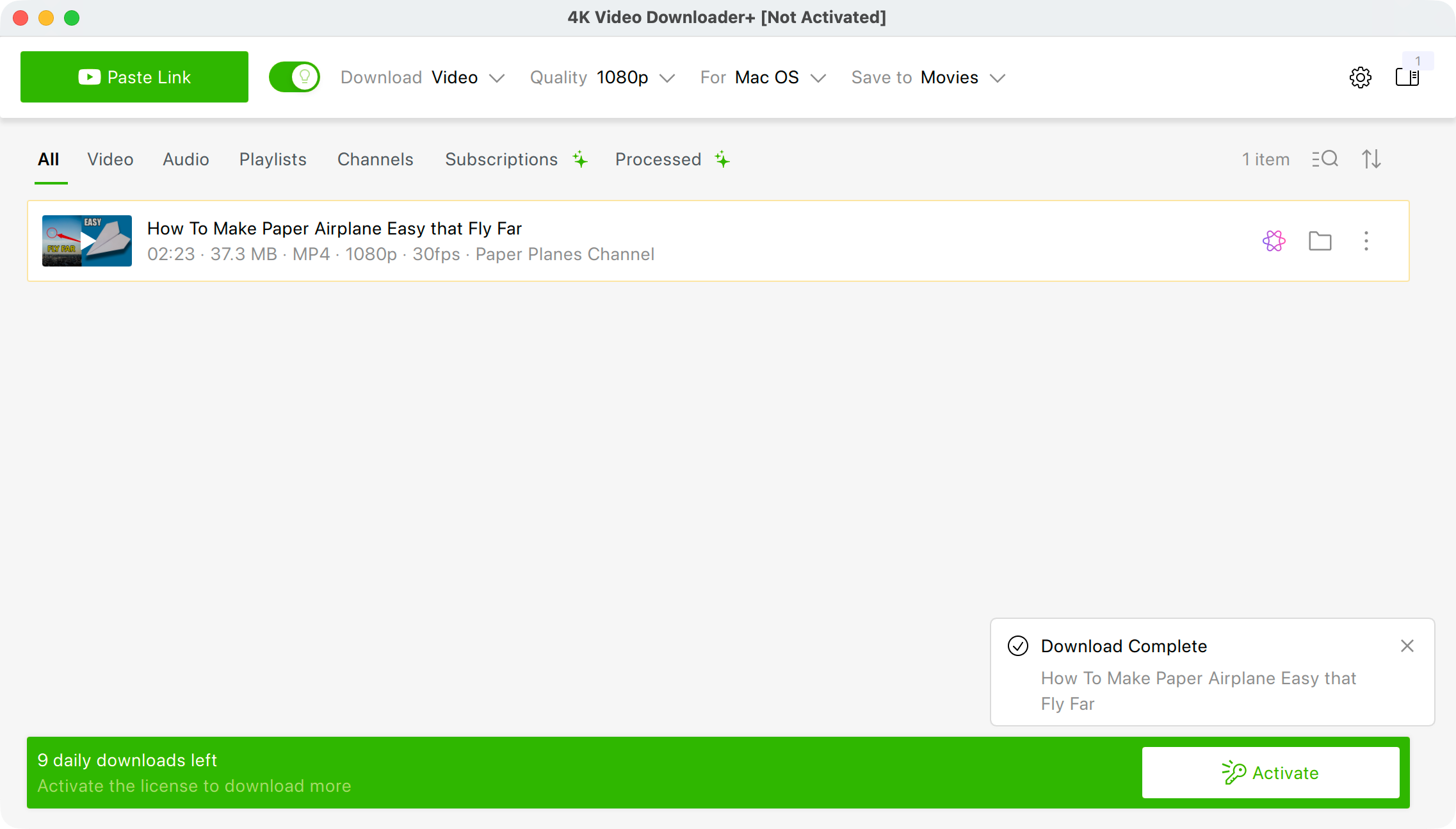
3. You will be notified when the download completes on the bottom right. The video will be saved in your Movies folder.
Uploading to Teams
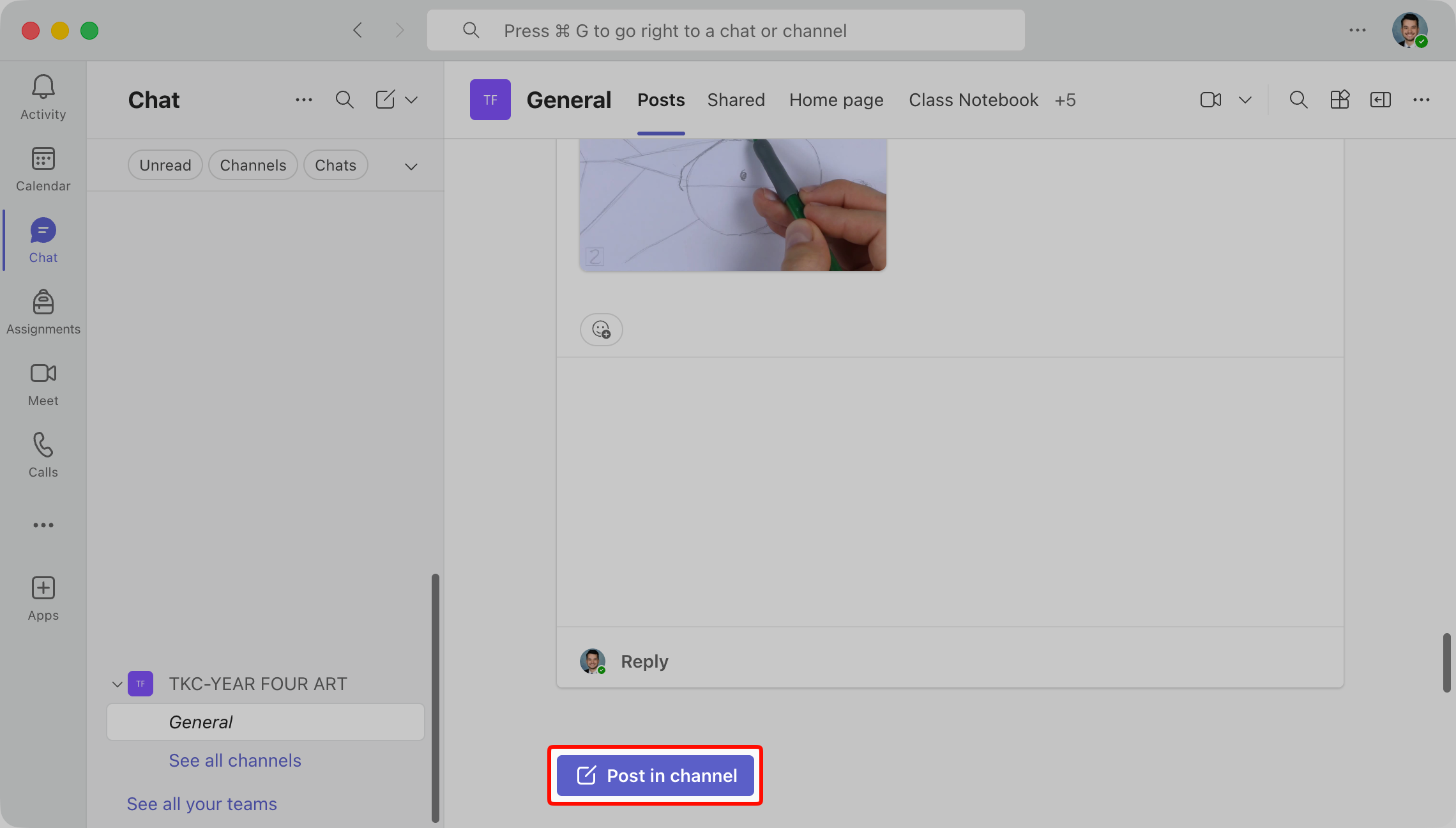
1. In your Team, click "Post in channel"
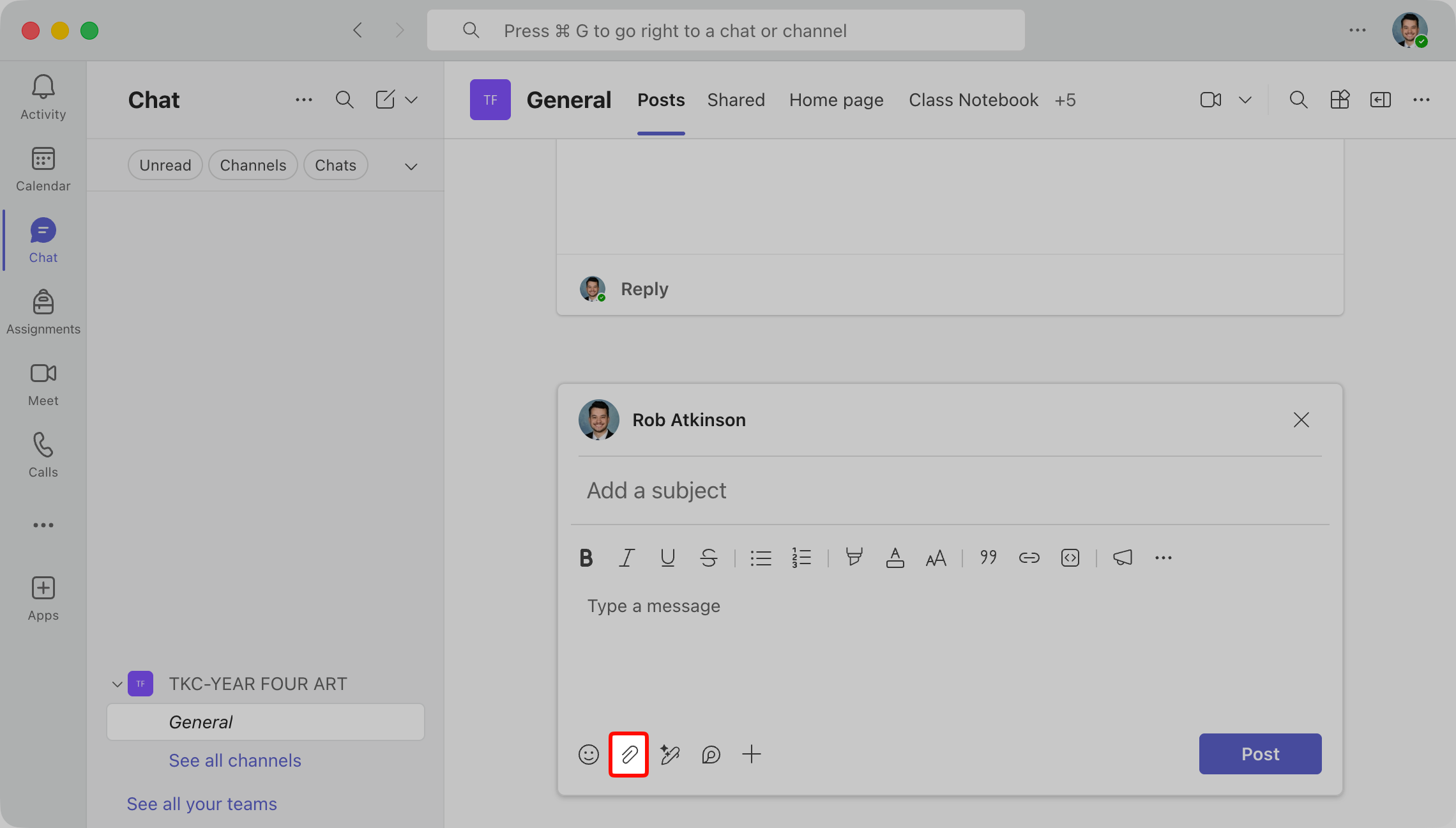
2. Click the paper clip at the bottom.
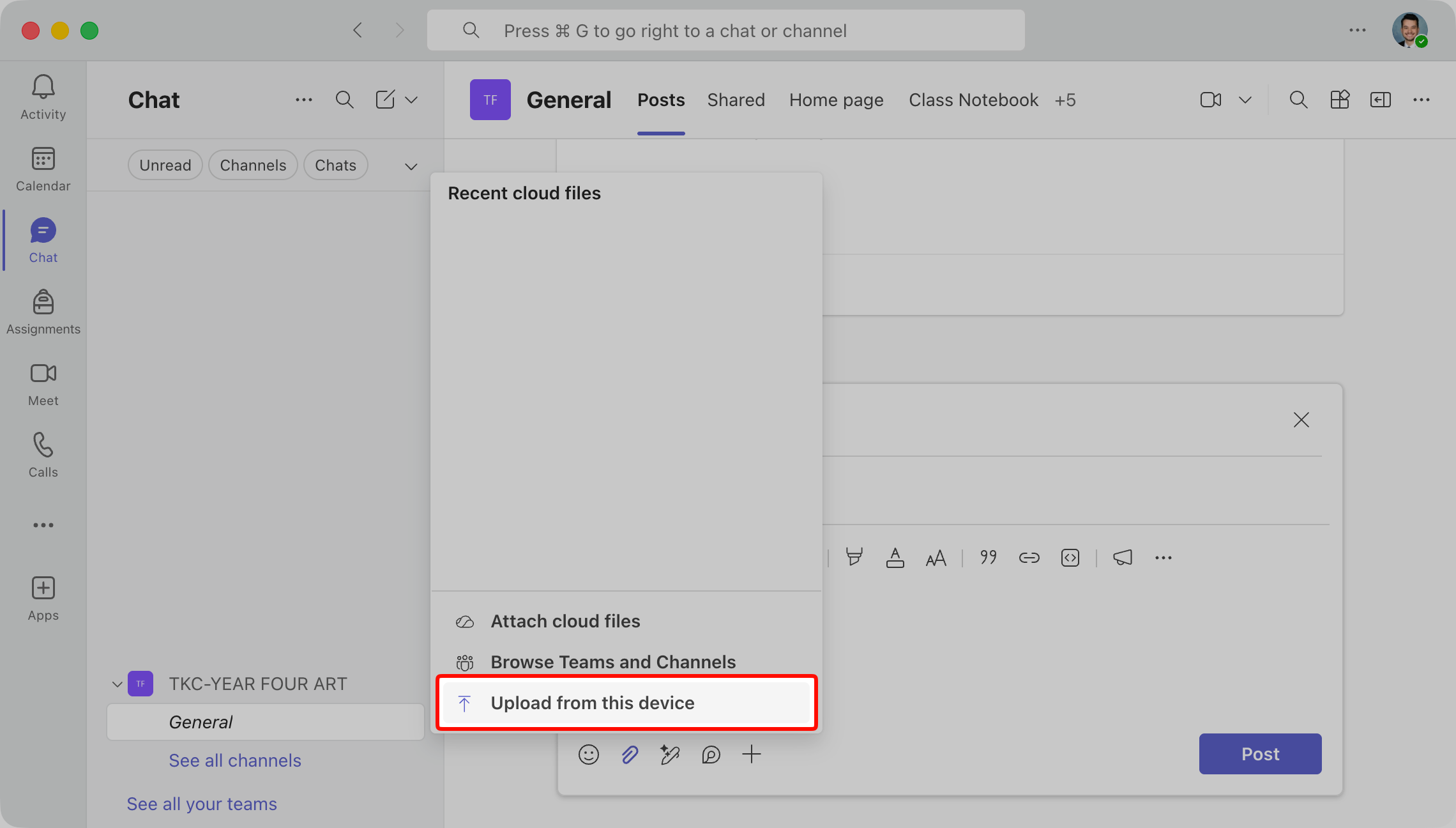
3. Select the "Upload from this device" option.
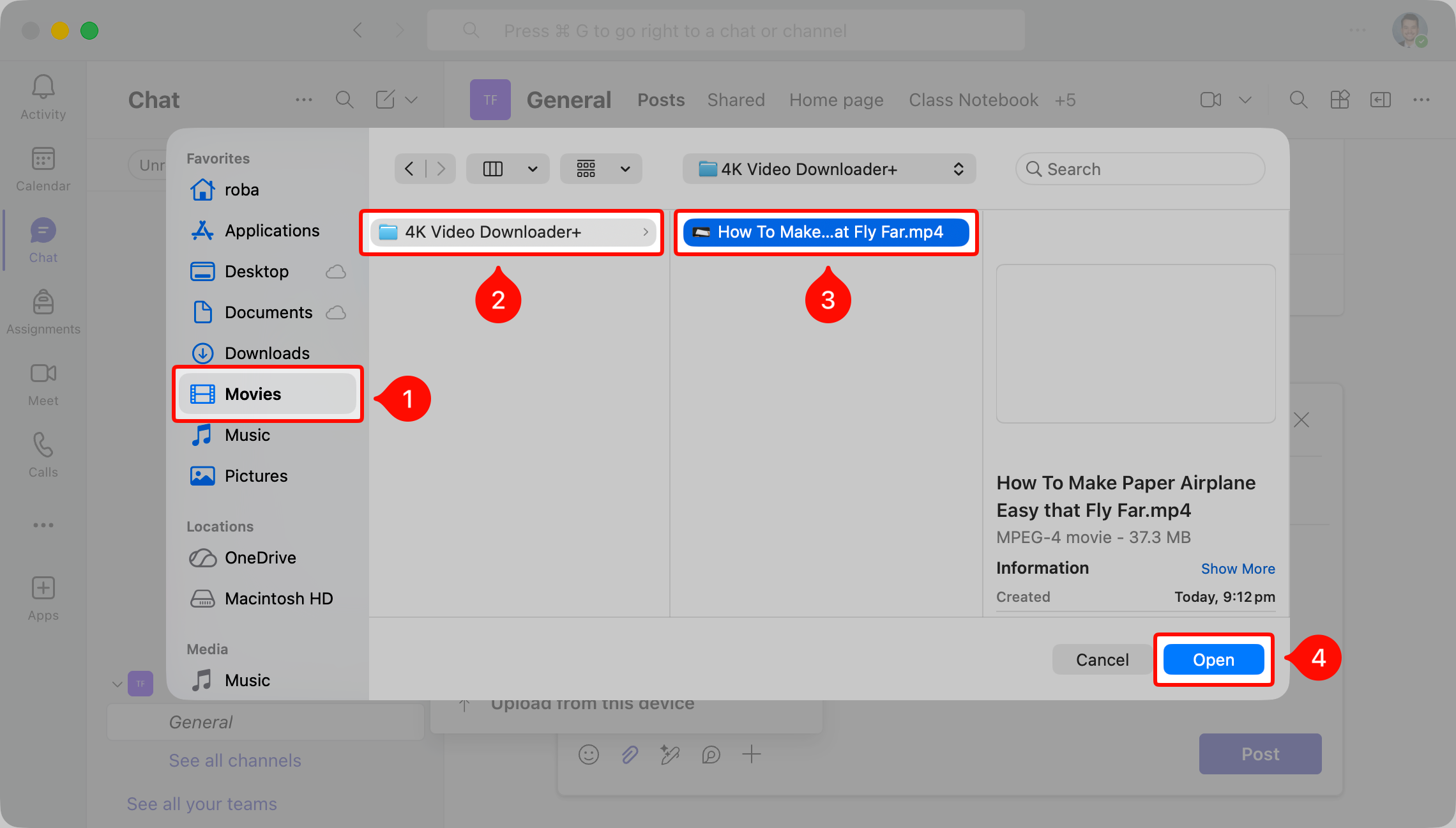
4. Navigate to Movies > 4K Video Downloader+ and select your video. If you don't see the Movies folder, press Command+Shift+H to reveal it.
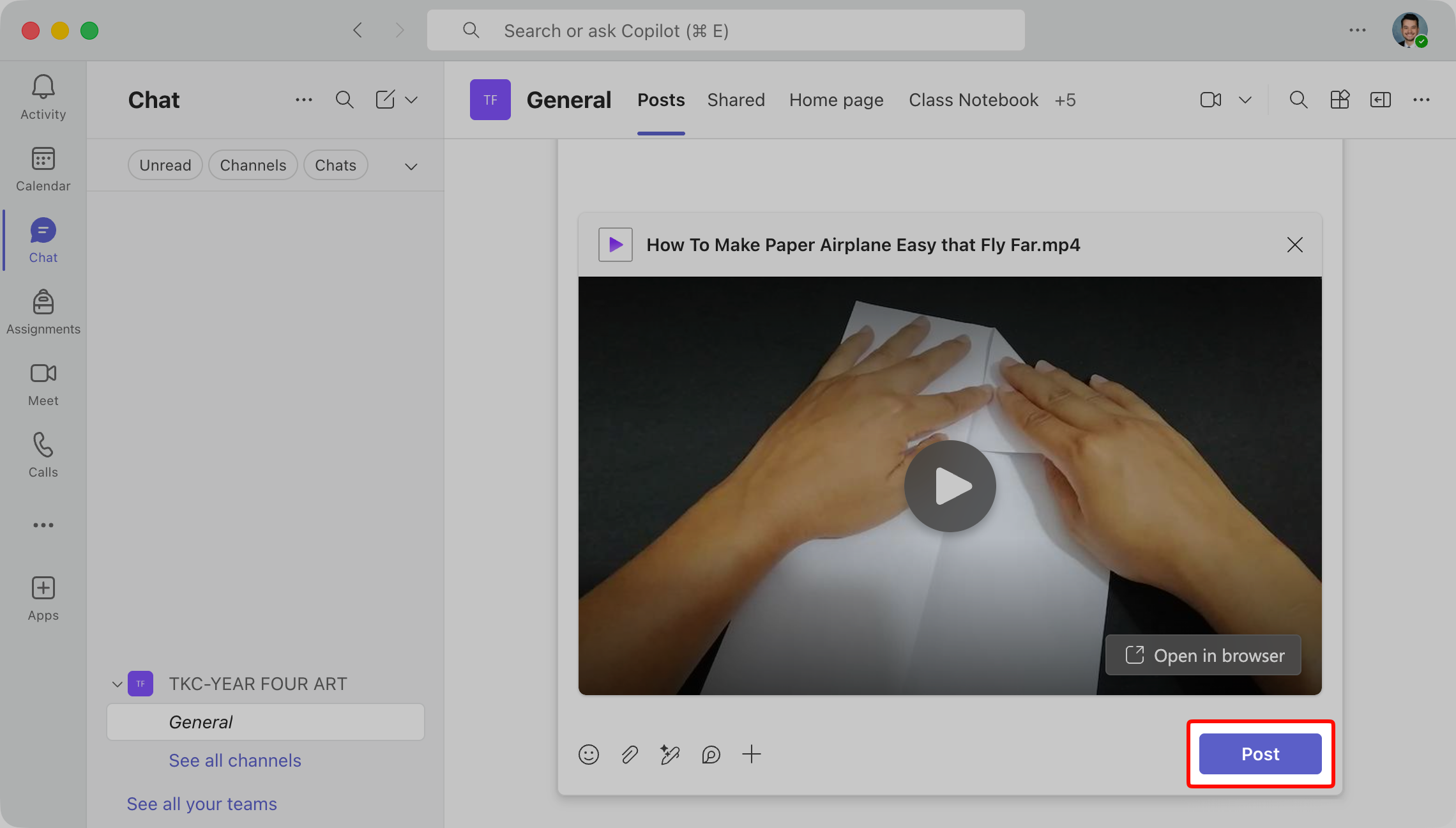
5. Choose "Post" and you're done!
Was this article helpful?
That’s Great!
Thank you for your feedback
Sorry! We couldn't be helpful
Thank you for your feedback
Feedback sent
We appreciate your effort and will try to fix the article